Send Mongolian as a Photo
iPhone
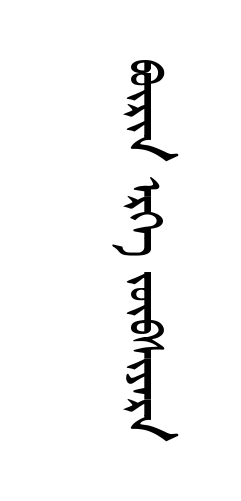
iPhone
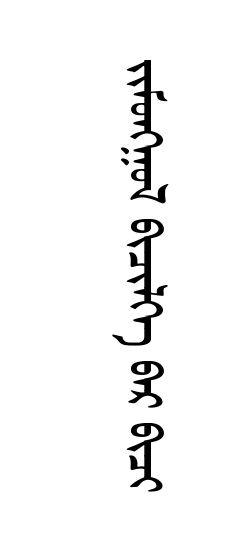
Android
zmongol.com · Settings → Languages & input → On-screen keyboard → Zmongol IME
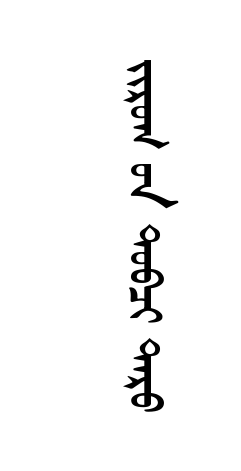
有些应用无法显示传统蒙古文。Zmongol 输入法可以把您输入的内容变成竖排照片——在任何应用里都能正常阅读。
iPhone 一次性设置
只需设置一次,之后发照片只需三步。
添加键盘
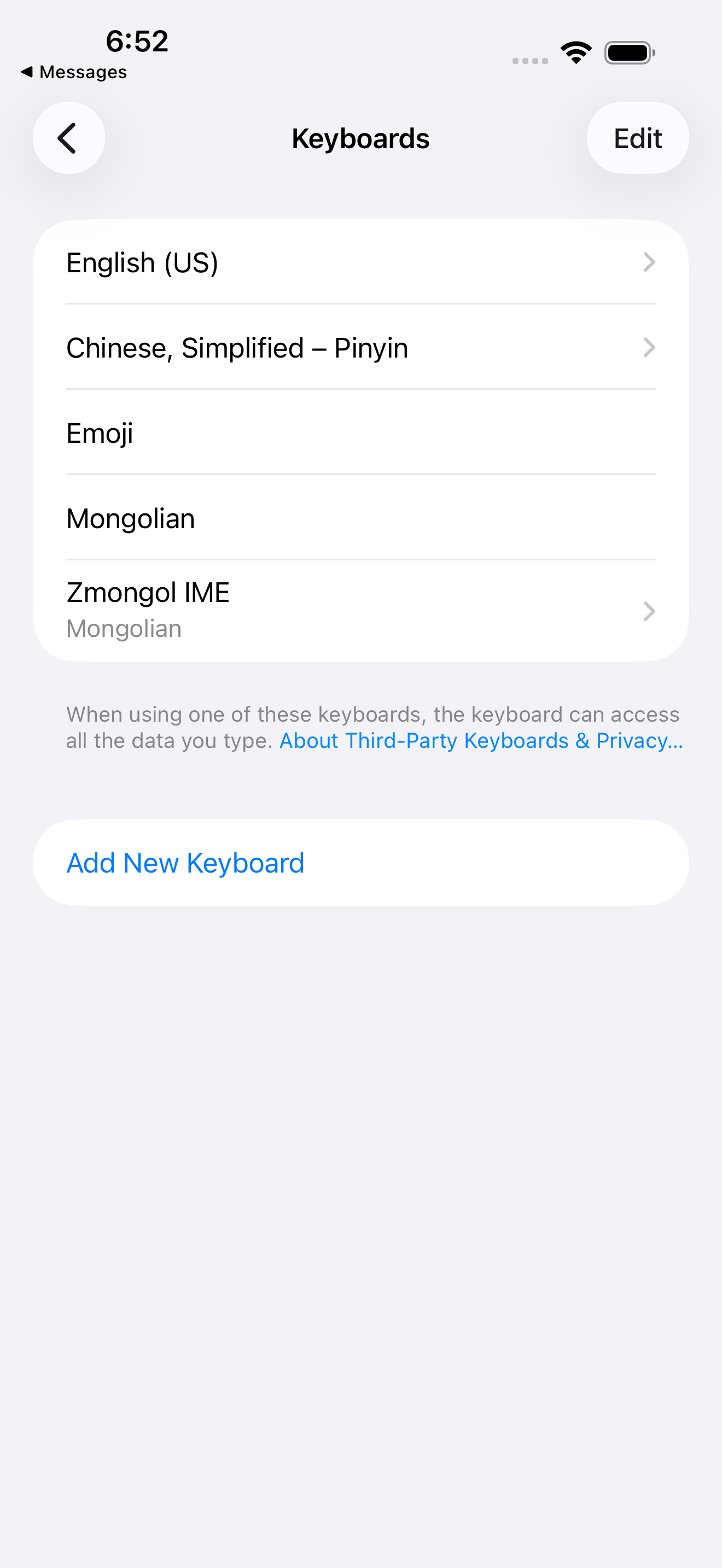
从 App Store 免费安装 Zmongol 输入法,然后打开「设置 → 通用 → 键盘 → 键盘 → 添加新键盘」,选择 Zmongol IME。
允许完全访问
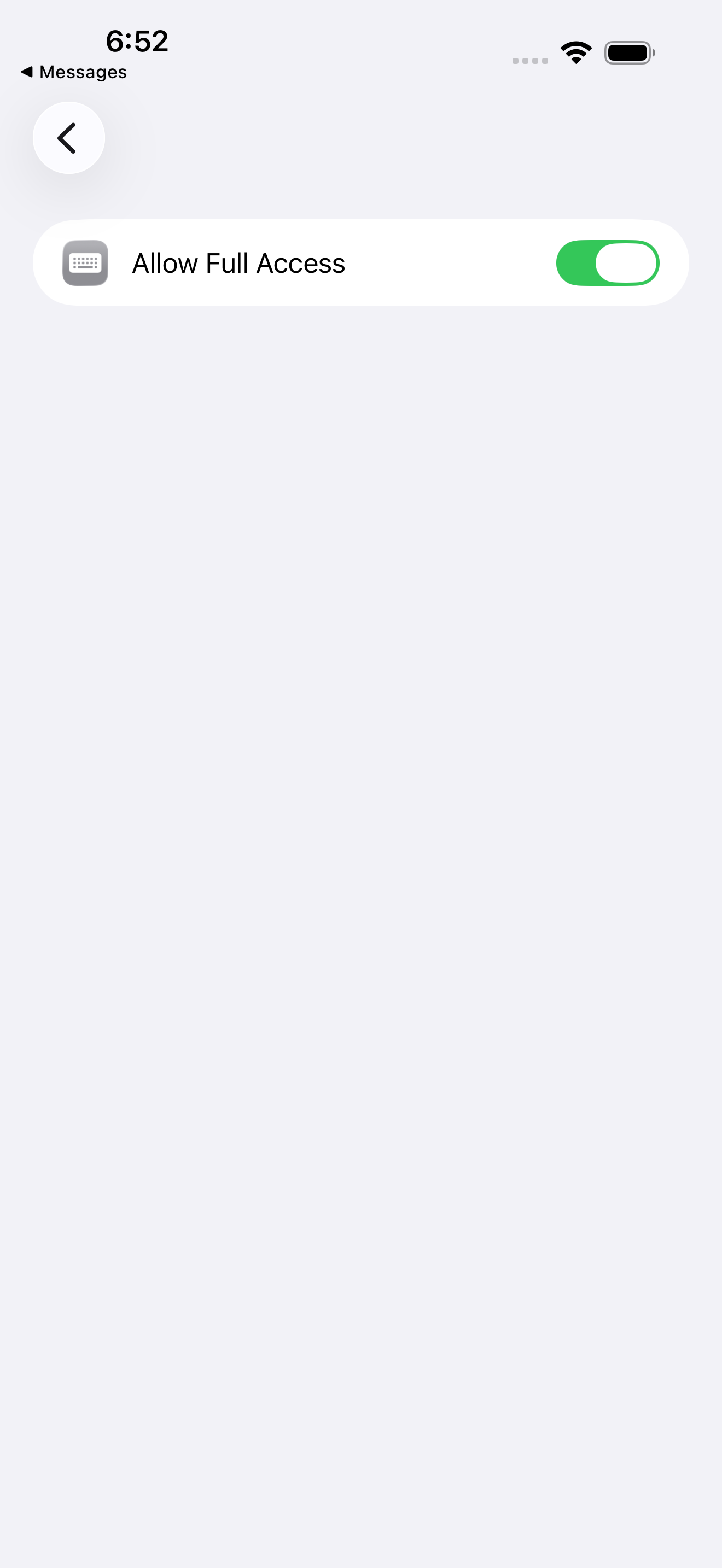
在键盘列表中点 Zmongol IME,打开「允许完全访问」。发送照片功能需要此权限——照片只在您的手机上生成和复制,不会上传到任何地方。
发送照片
输入内容
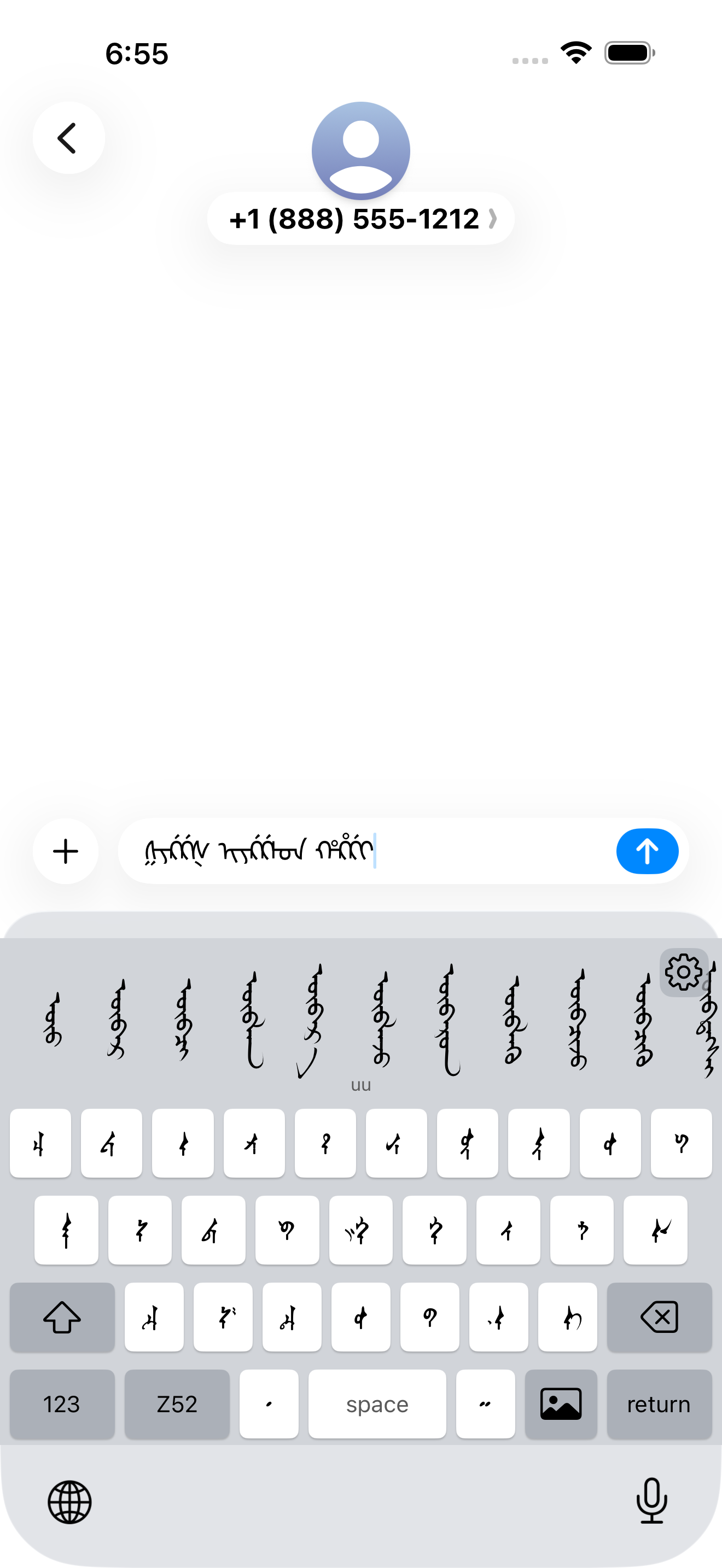
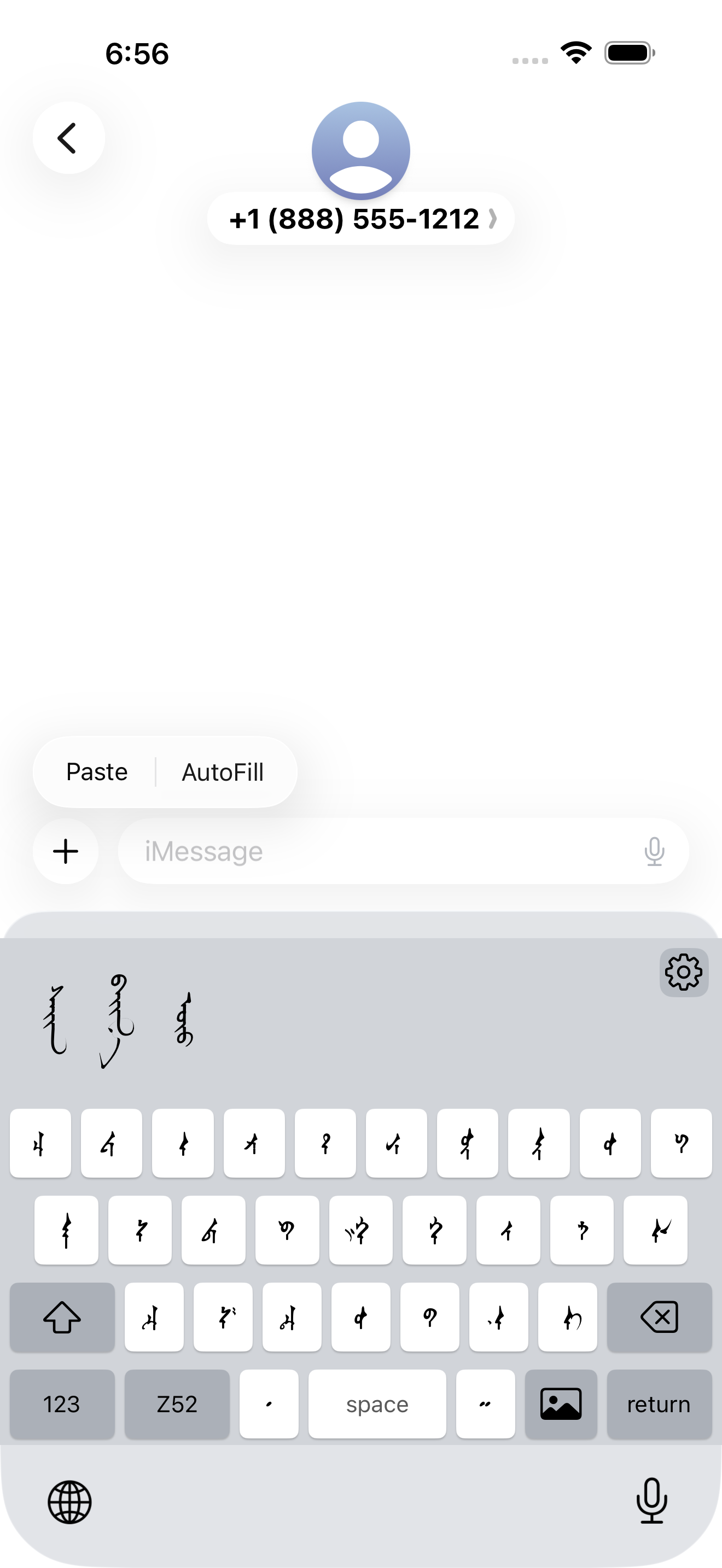
在任何聊天应用中,用地球键切换到 Zmongol 键盘,像平时一样输入,并从候选栏选词。
点图片按钮
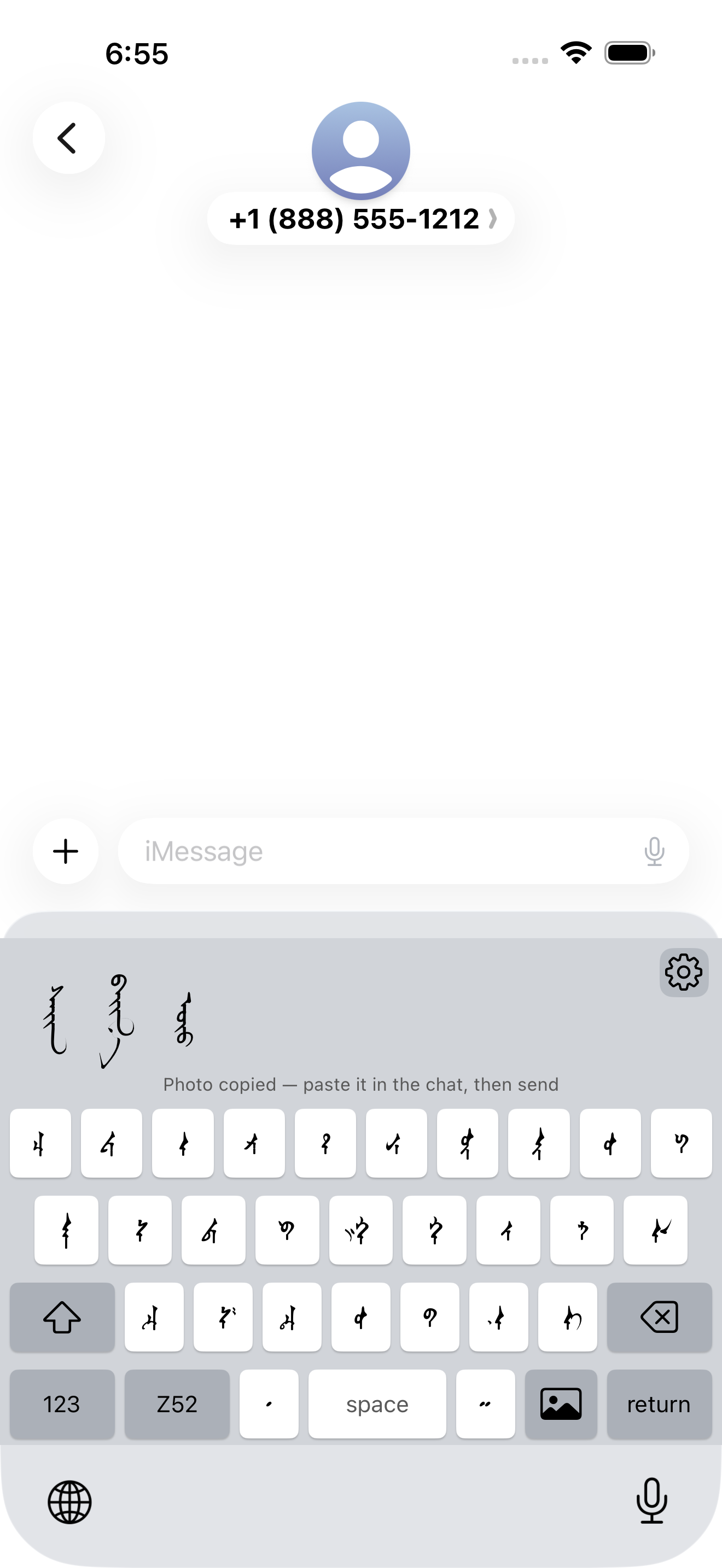
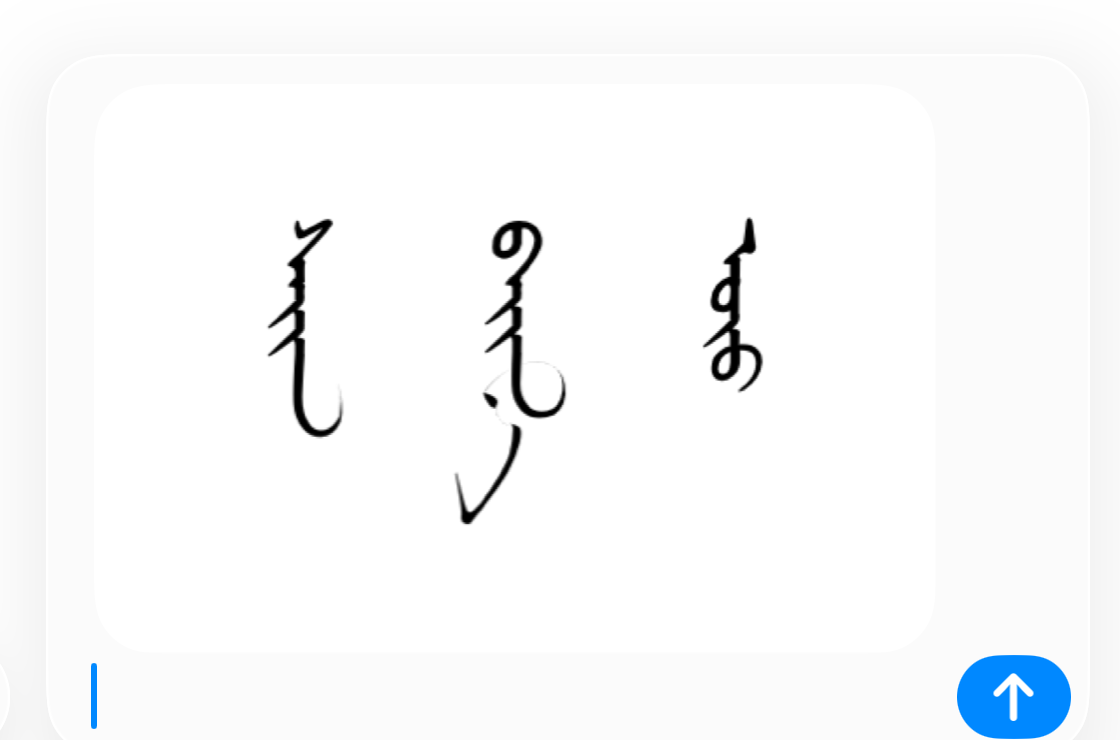
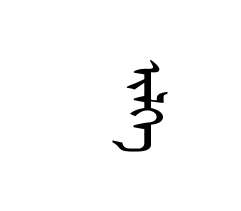
点键盘底行的图片按钮。文字会变成照片并自动复制——键盘会显示「照片已复制」,输入的文字会被清除。
粘贴
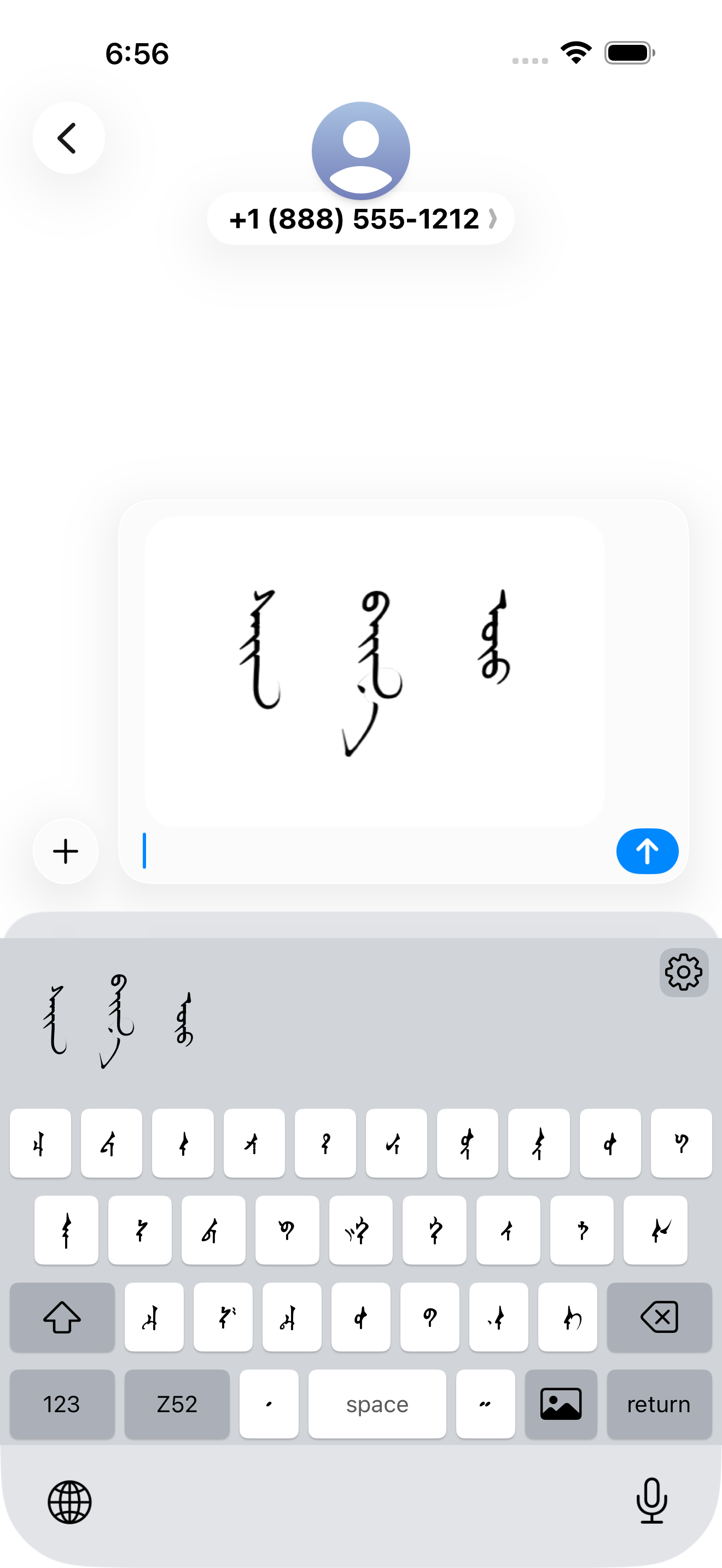
在输入框中长按,点「粘贴」。竖排照片会出现在输入框中。
发送
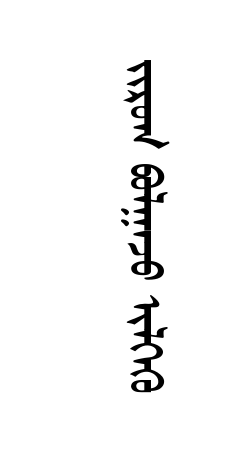
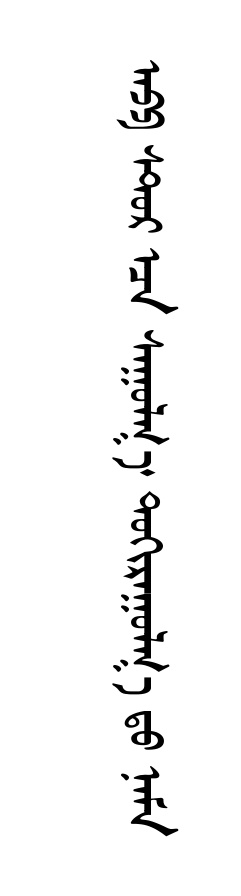
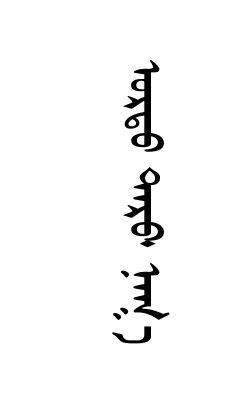
点发送箭头。您的消息会以竖排照片的形式发出——即使在无法显示蒙古文的应用里也能正常阅读。
安卓
安装并启用
从 zmongol.com 下载并安装 Zmongol 输入法(安卓版)。然后打开「设置 → 语言和输入 → 屏幕键盘」,启用 Zmongol 输入法,并将其选为当前键盘。
发送照片——同样的四步
输入内容 → 点图片按钮(文字变成照片并自动复制)→ 在输入框中长按 → 粘贴 → 发送。
Some apps cannot display traditional Mongolian script. Zmongol IME turns your typed message into a vertical photo — anyone can read it, in any app.
iPhone — one-time setup
Do this once. After that, sending a photo takes three taps.
Add the keyboard
Install Zmongol IME from the App Store (free). Then open Settings → General → Keyboard → Keyboards → Add New Keyboard and choose Zmongol IME.
Allow Full Access
In the same Keyboards list, tap Zmongol IME and turn on Allow Full Access. The photo feature needs this — the photo is made and copied on your phone only, nothing is sent anywhere.
Send a photo — iPhone
Type your message
In any chat app, switch to the Zmongol keyboard with the globe key and type as usual, choosing words from the candidate bar.
Tap the photo button
Tap the picture button on the keyboard's bottom row. Your text becomes a photo and is copied automatically — the keyboard shows “Photo copied — paste it in the chat, then send” and the typed text is cleared.
Paste it
Long-press in the message box and tap Paste. The vertical photo appears in the box.
Send
Tap the send arrow. Your message goes out as a photo, standing upright — readable even in apps that cannot show Mongolian text.
Android
Install and turn it on
Download Zmongol IME for Android from zmongol.com and install it. Then open Settings → Languages & input → On-screen keyboard, turn on Zmongol IME, and select it as your current keyboard.
Send a photo — same four steps
Type your message → tap the photo button (your text becomes a photo and is copied) → long-press → Paste in the message box → Send.